
How to use the Korio Client Portal
REVIEWING & MANAGING CONTENT IN THE KORIO PORTAL

HOW IT WORKS
Learn how to access your content management dashboard in the Korio Client Portal where you can review and approve content, submit feedback, and create new drafts efficiently.

LOGIN & ACCESS:
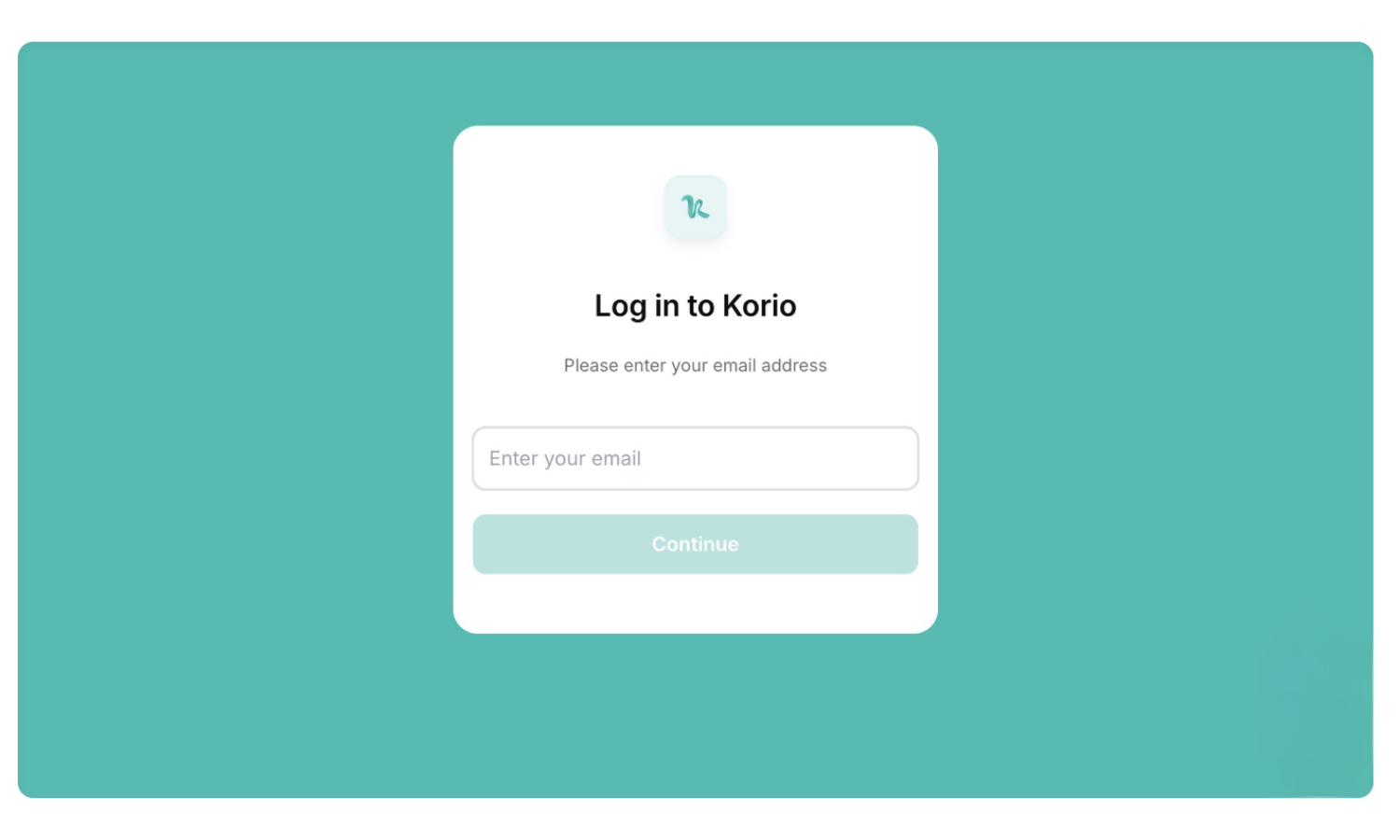
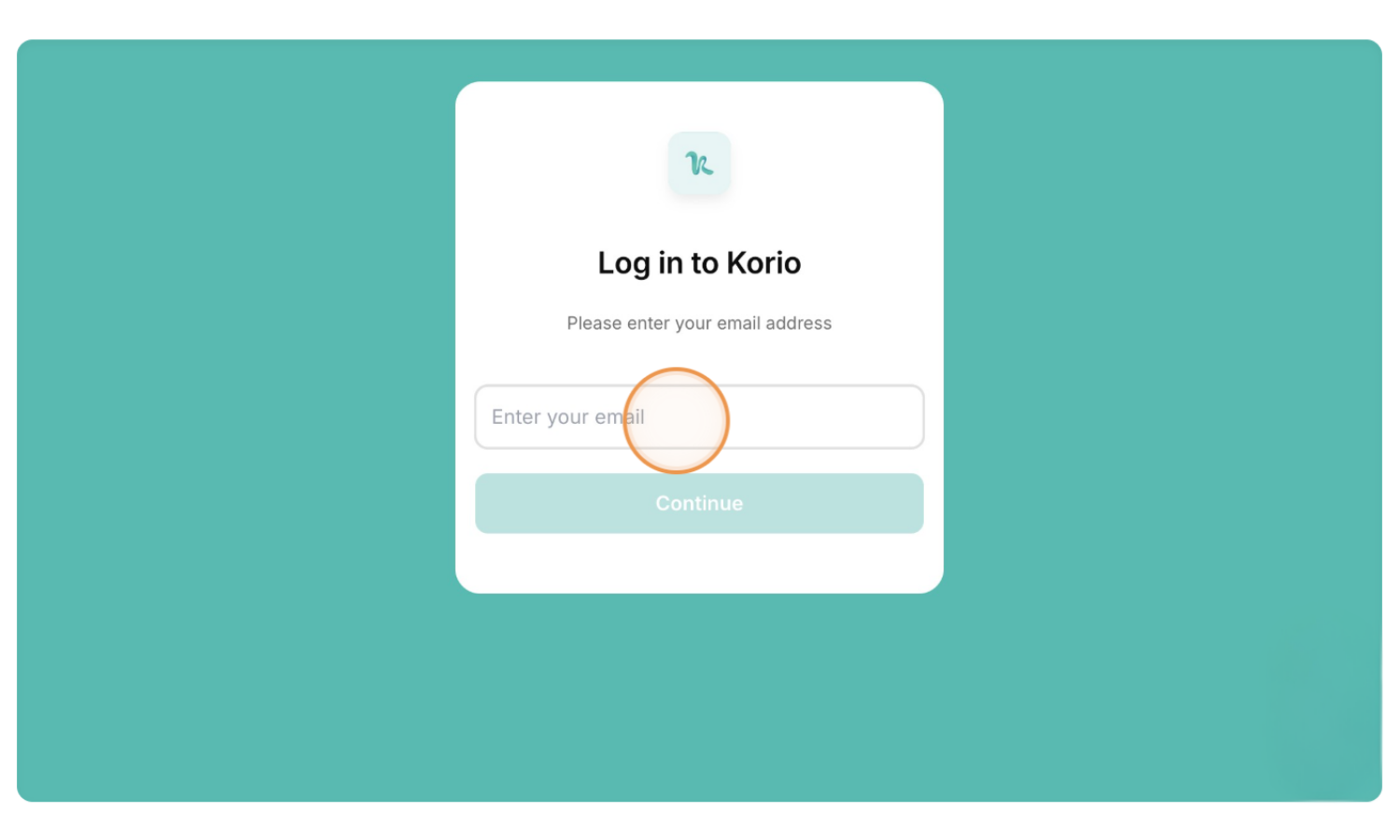
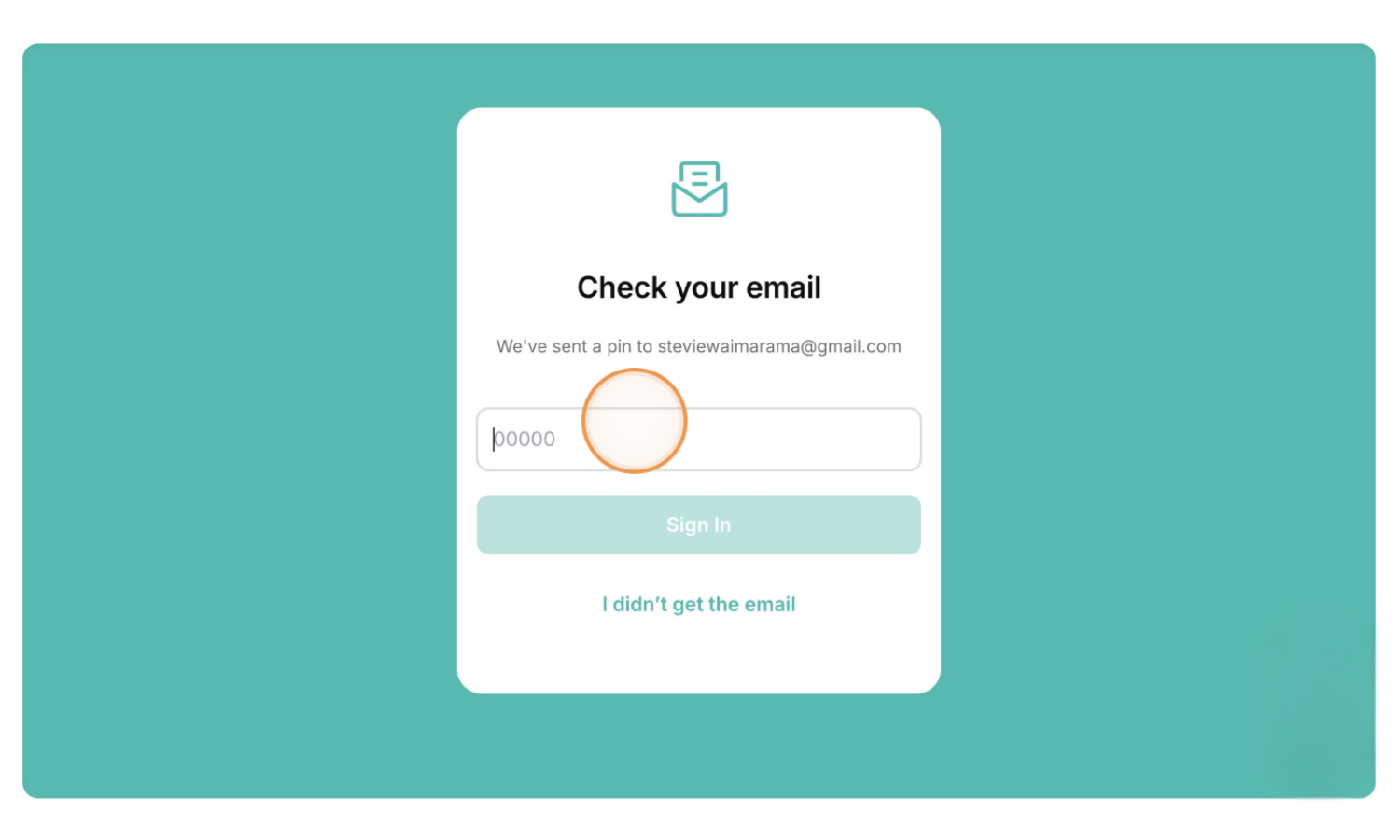
Enter your Email and click “Continue”

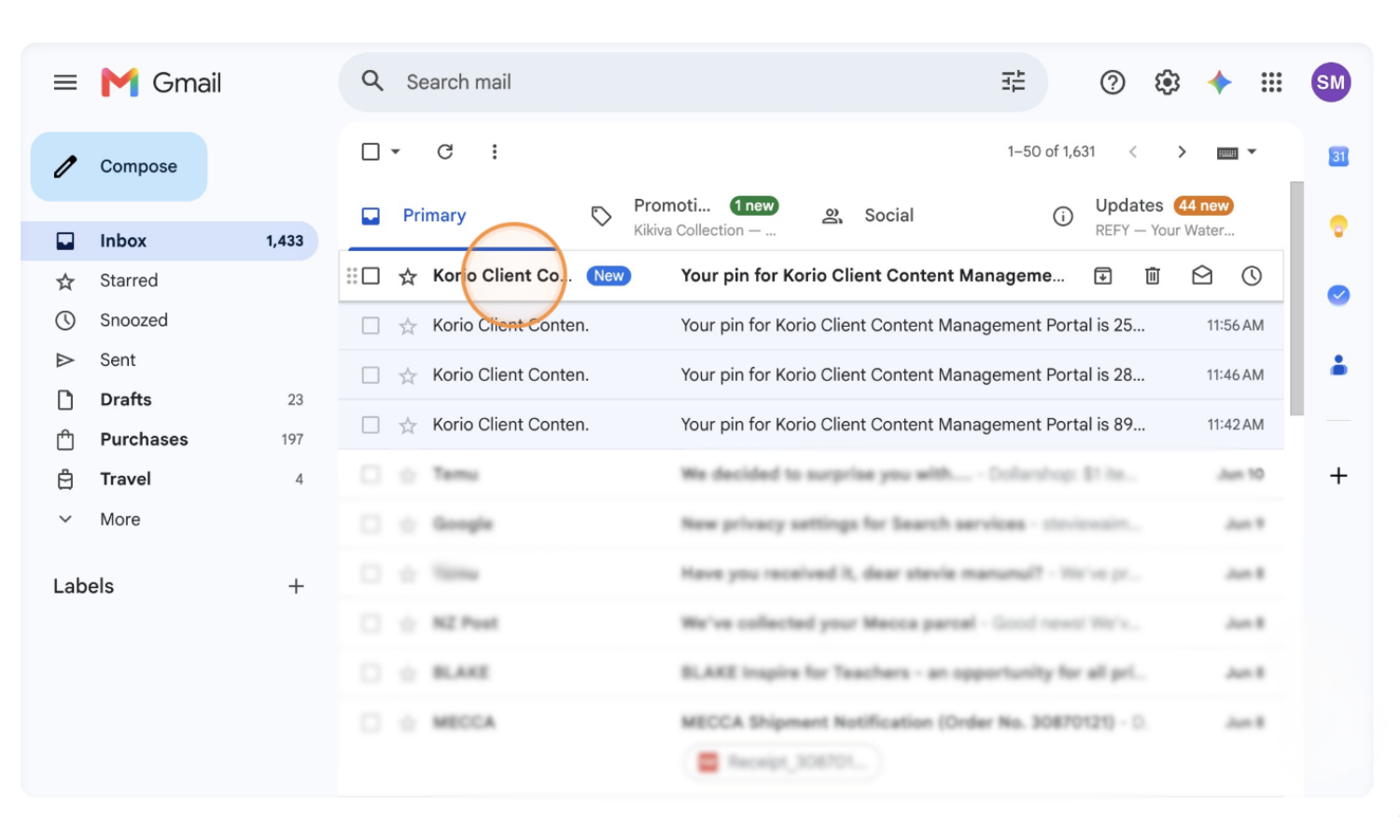
Find the access pin in your Email “Korio Client Content”
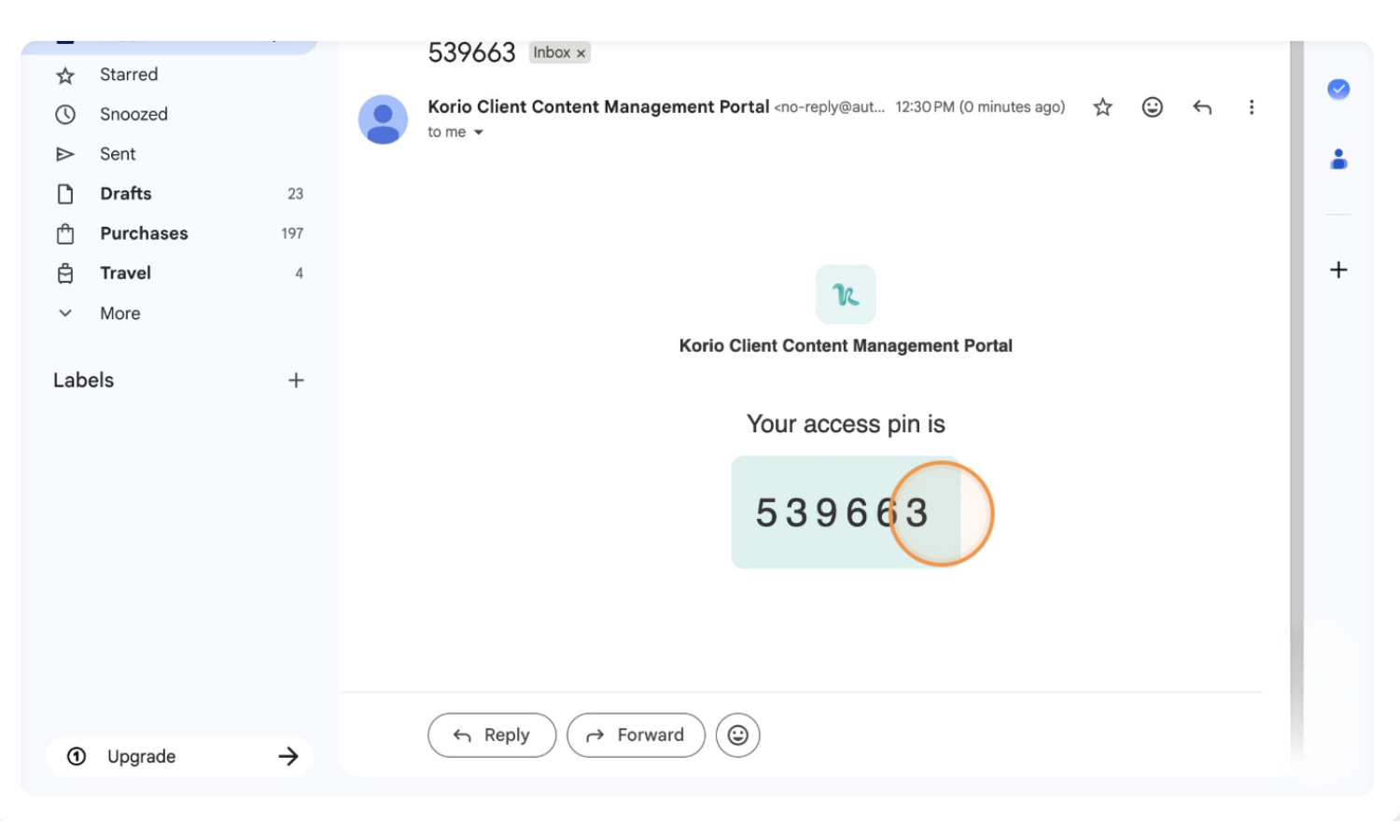
Copy access pin
Enter access pin and click “Sign In”
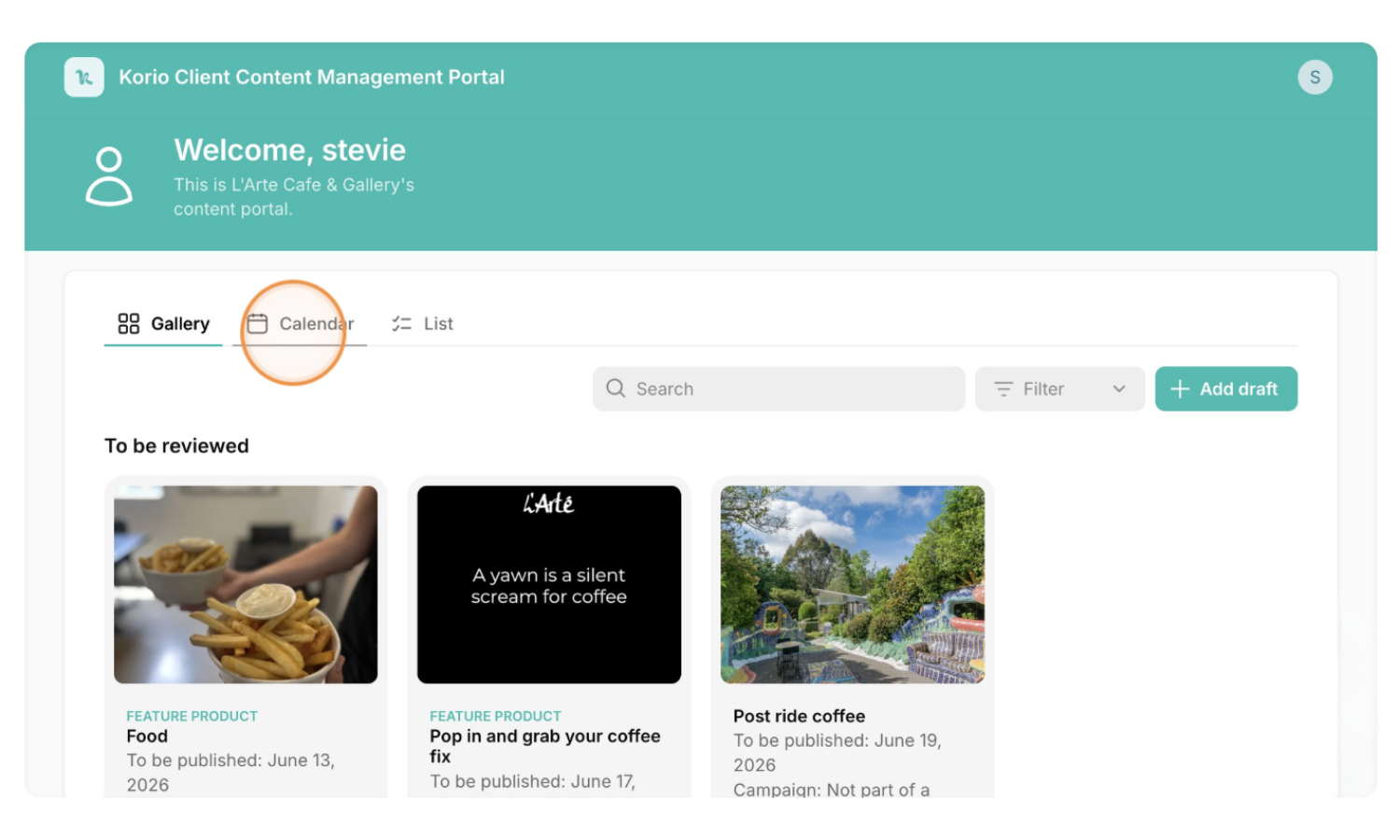
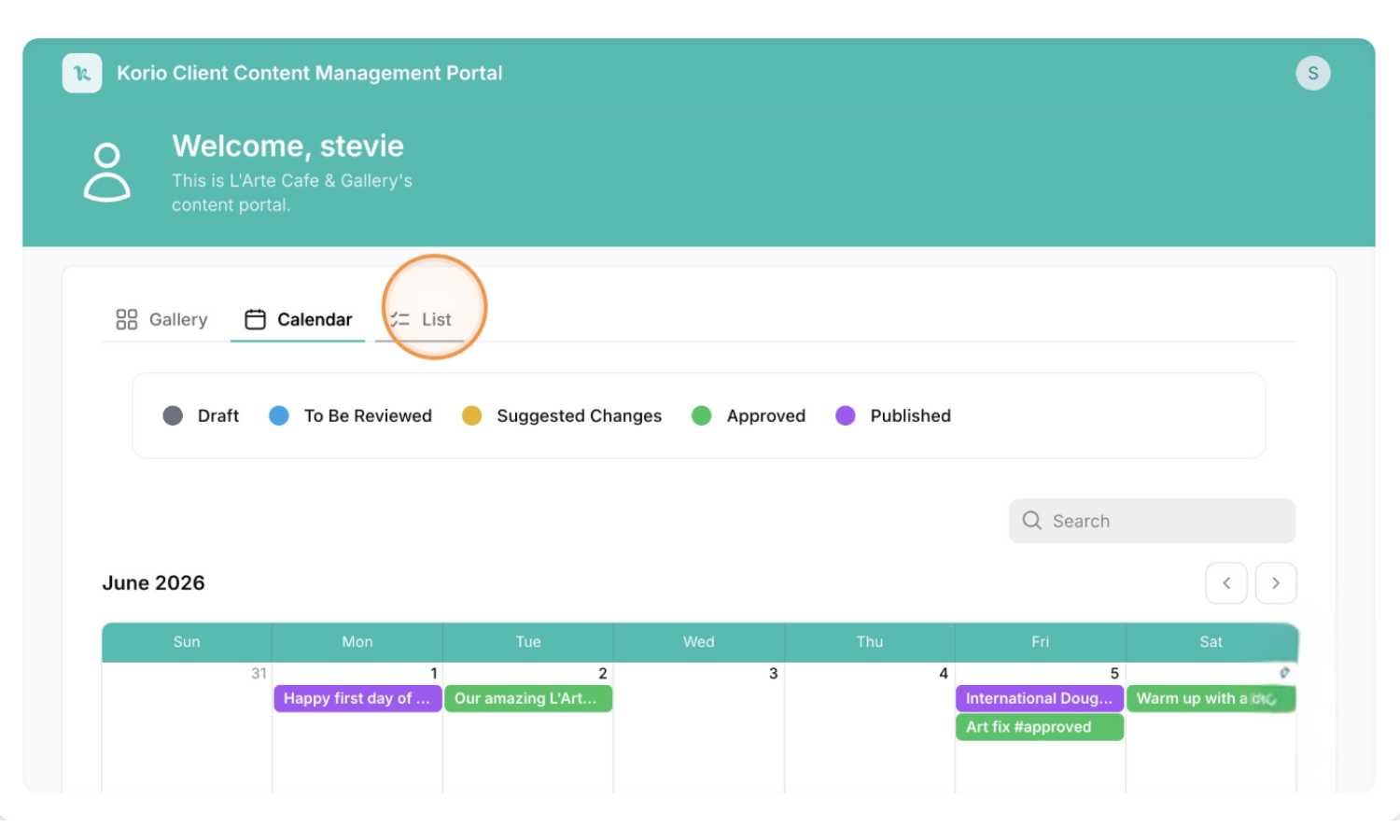
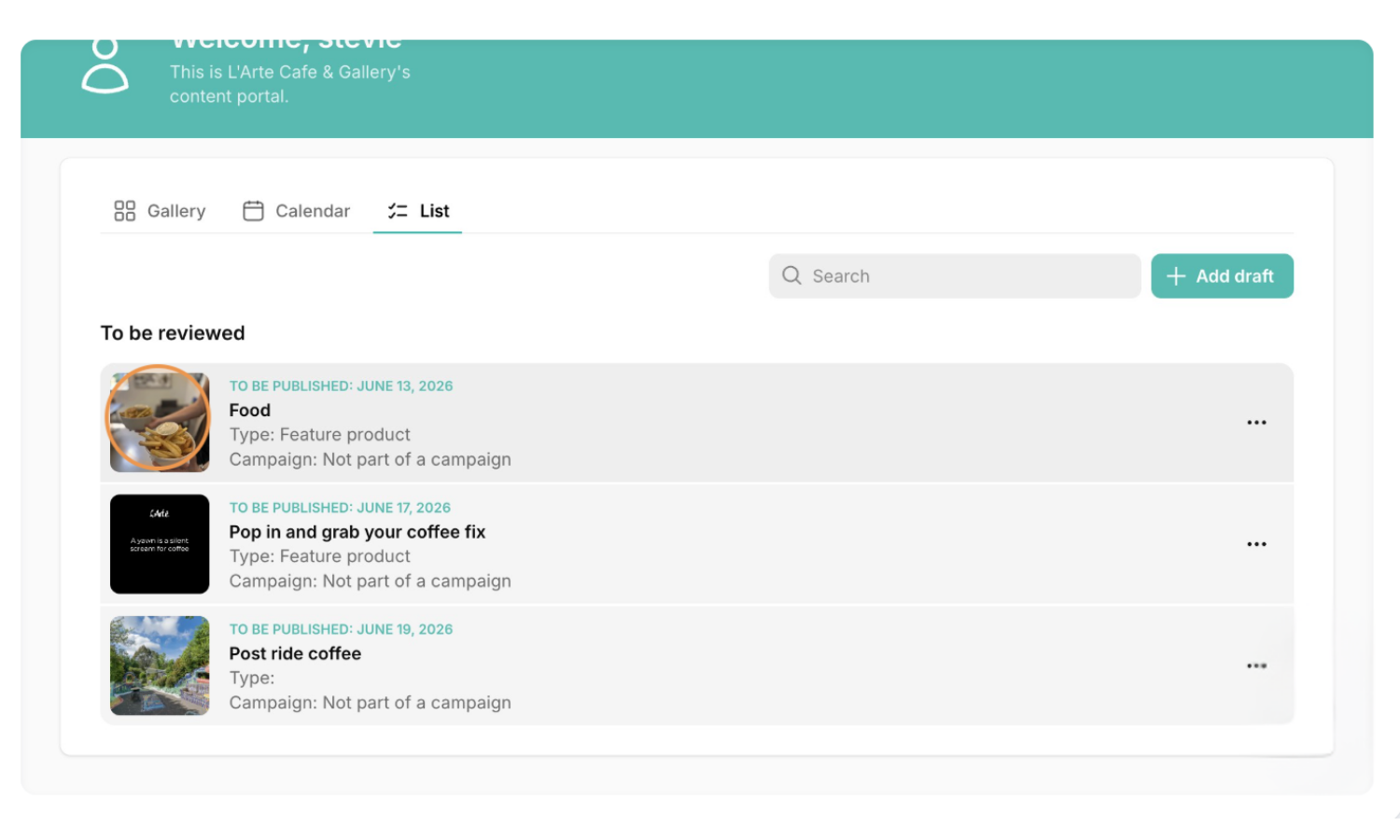
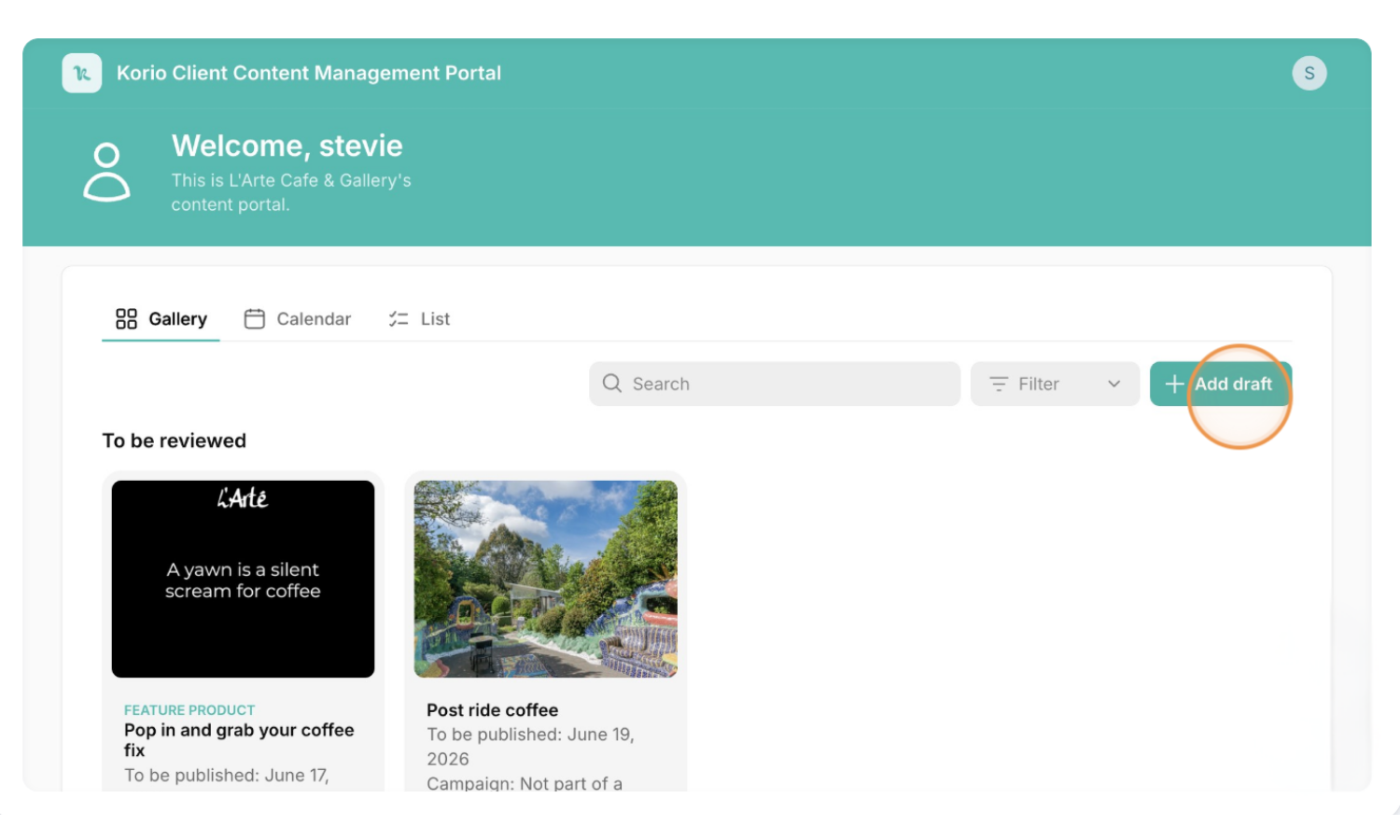
The portal will open to the main page to view upcoming content. There are 3 views — Gallery, Calendar and List. Open "Calendar".
UNDERSTANDING CONTENT STATUSES:
In the Calendar view "Drafts" are GREY (placeholder content that is still being worked on by the Korio team).
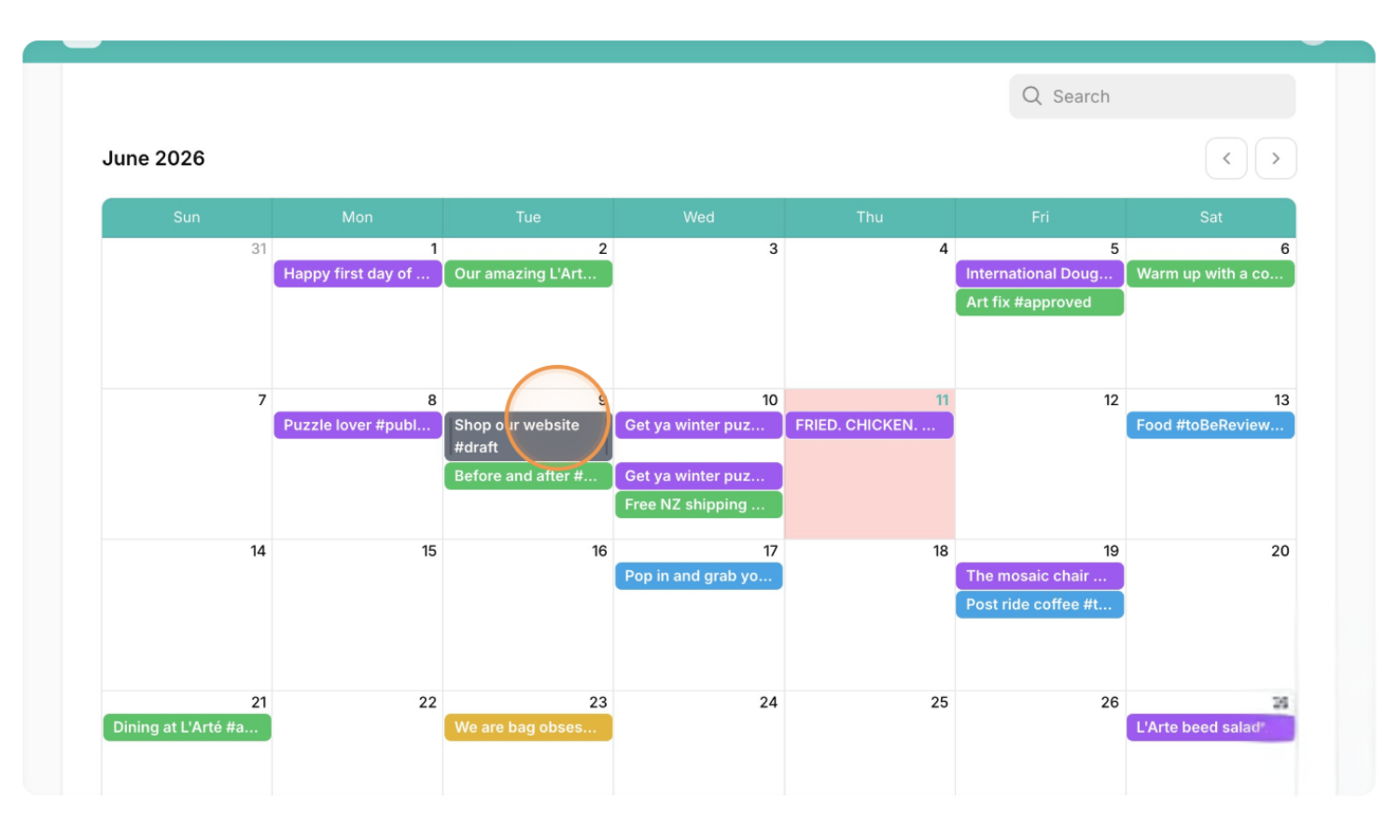
"To Be Reviewed" are BLUE (content that is ready for you to review).
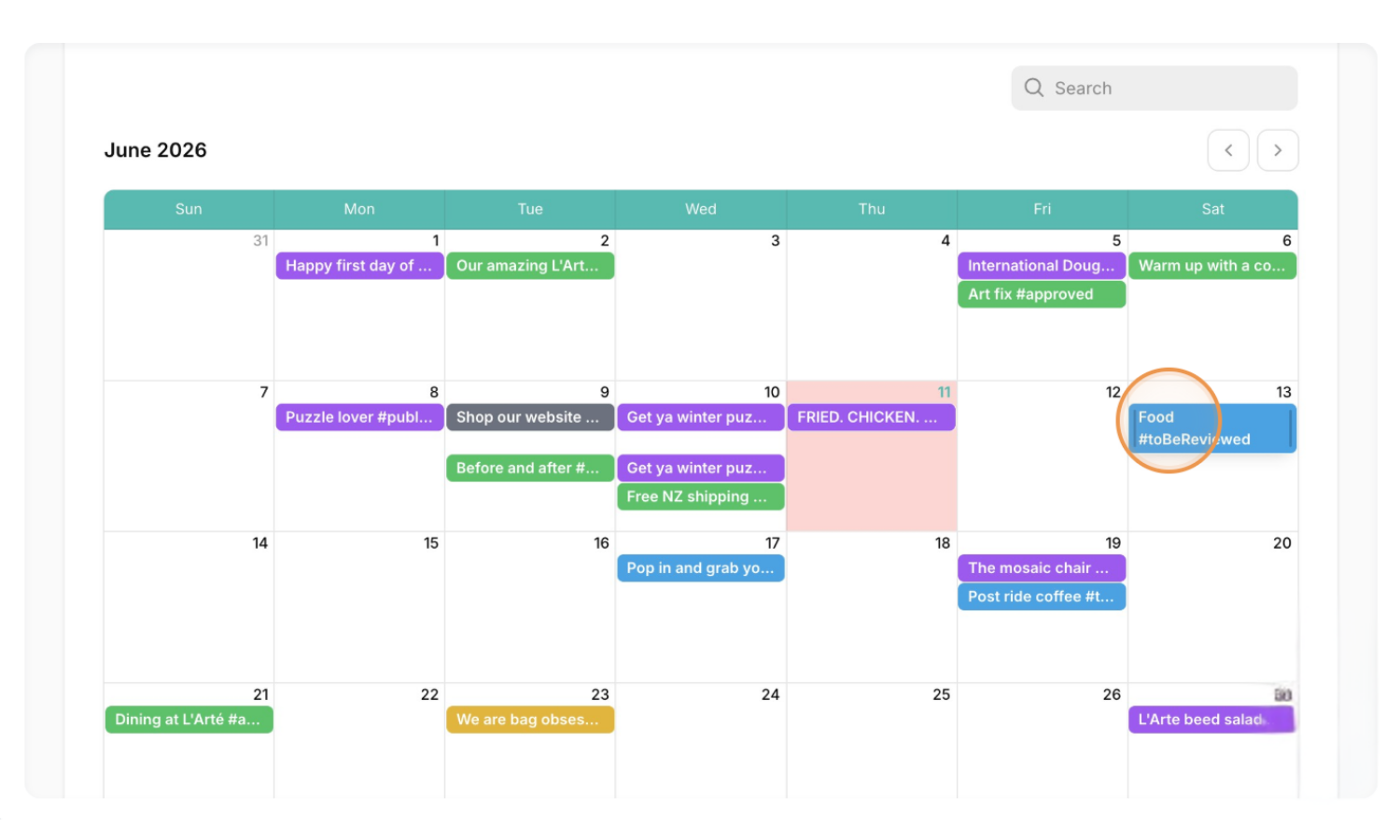
"Suggested Changes" are YELLOW (a post you have reviewed and left feedback for us to action).
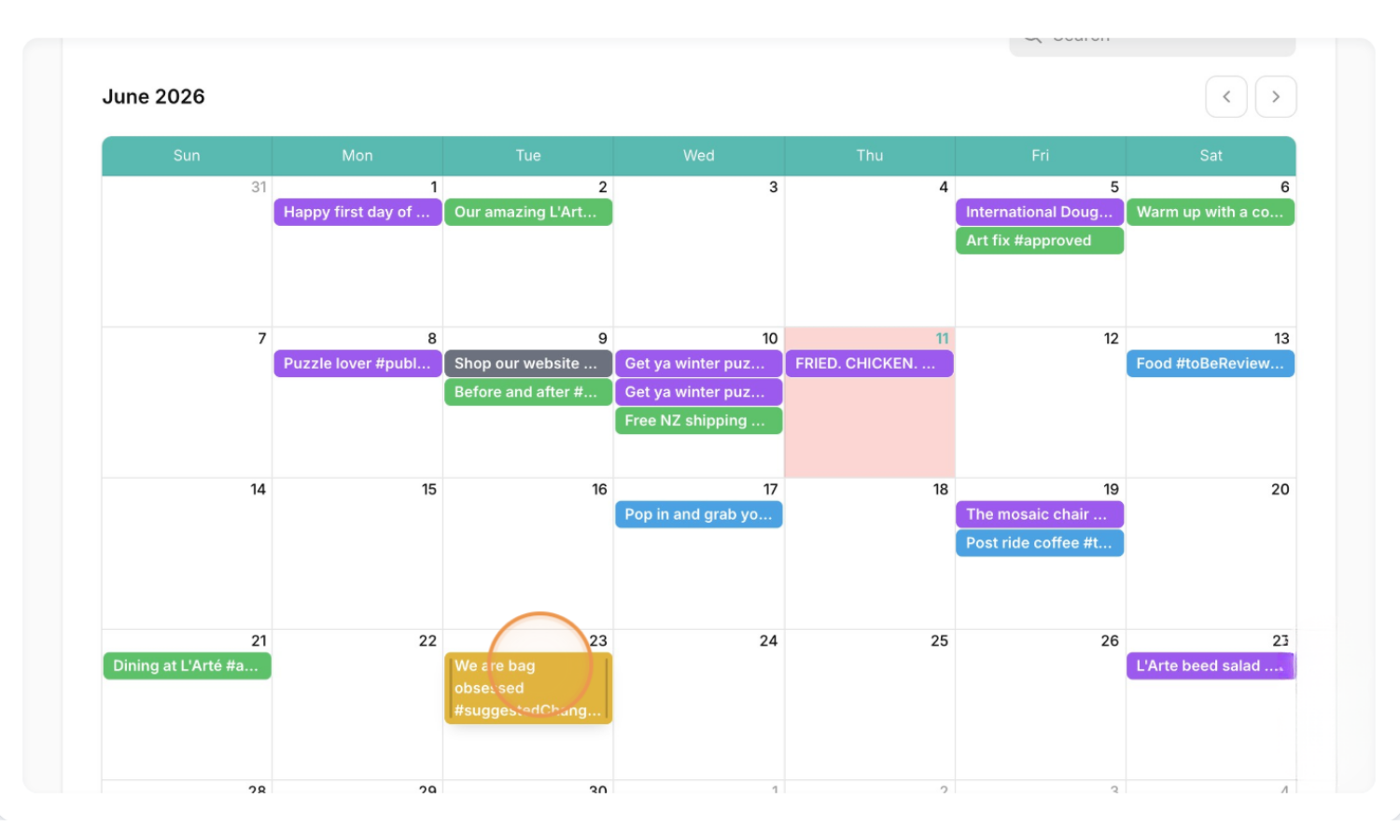
"Approved" are GREEN (a completed post that you have approved).
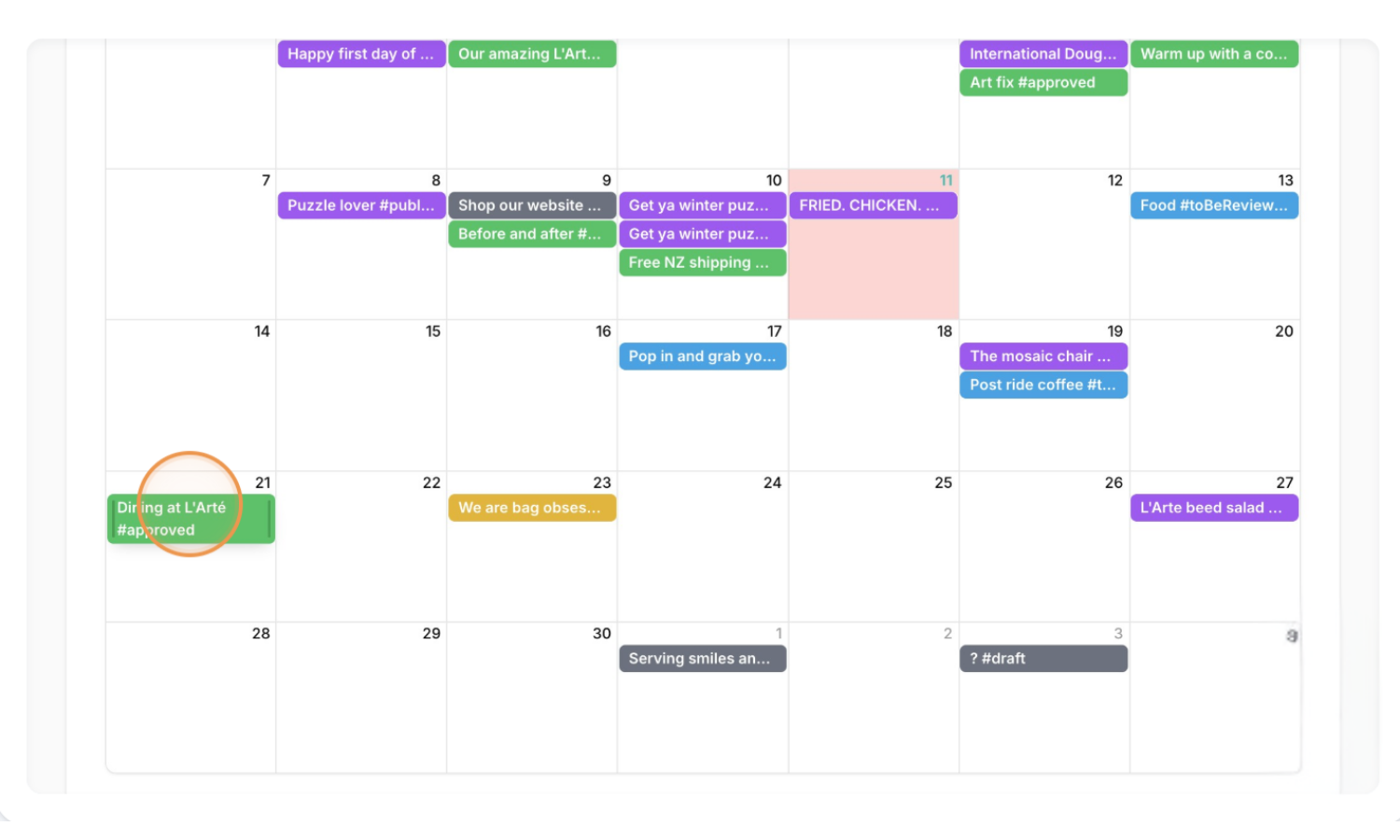
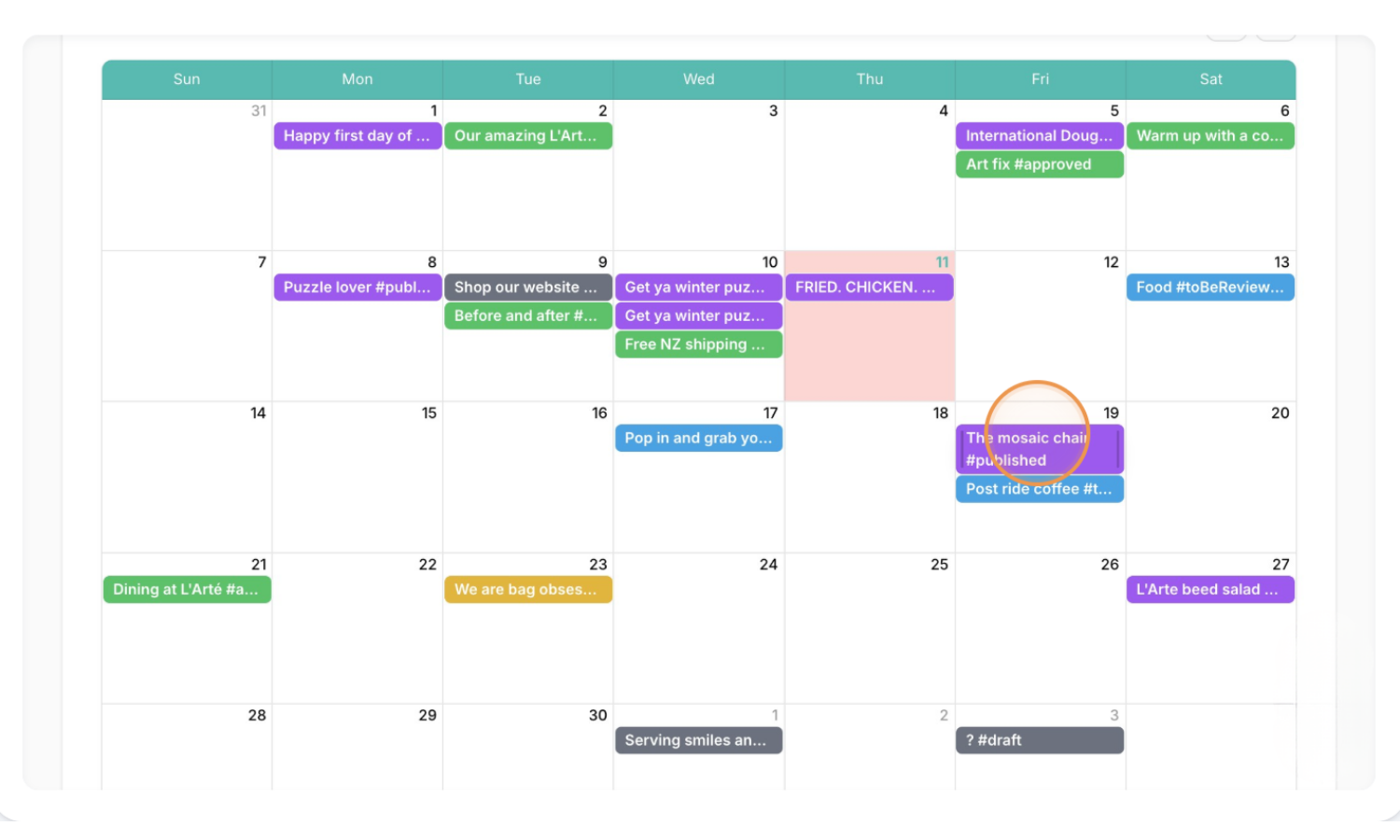
"Published" are PURPLE (a post which has been reviewed and we have either scheduled it, or it is already published).
To see all "To Be Reviewed" in one place open LIST view. Or you can view all the "To Be Reviewed" in the other views by filtering by Approval Status.
REVIEWING CONTENT:
To review a specific piece of content click on it to see all of the details.
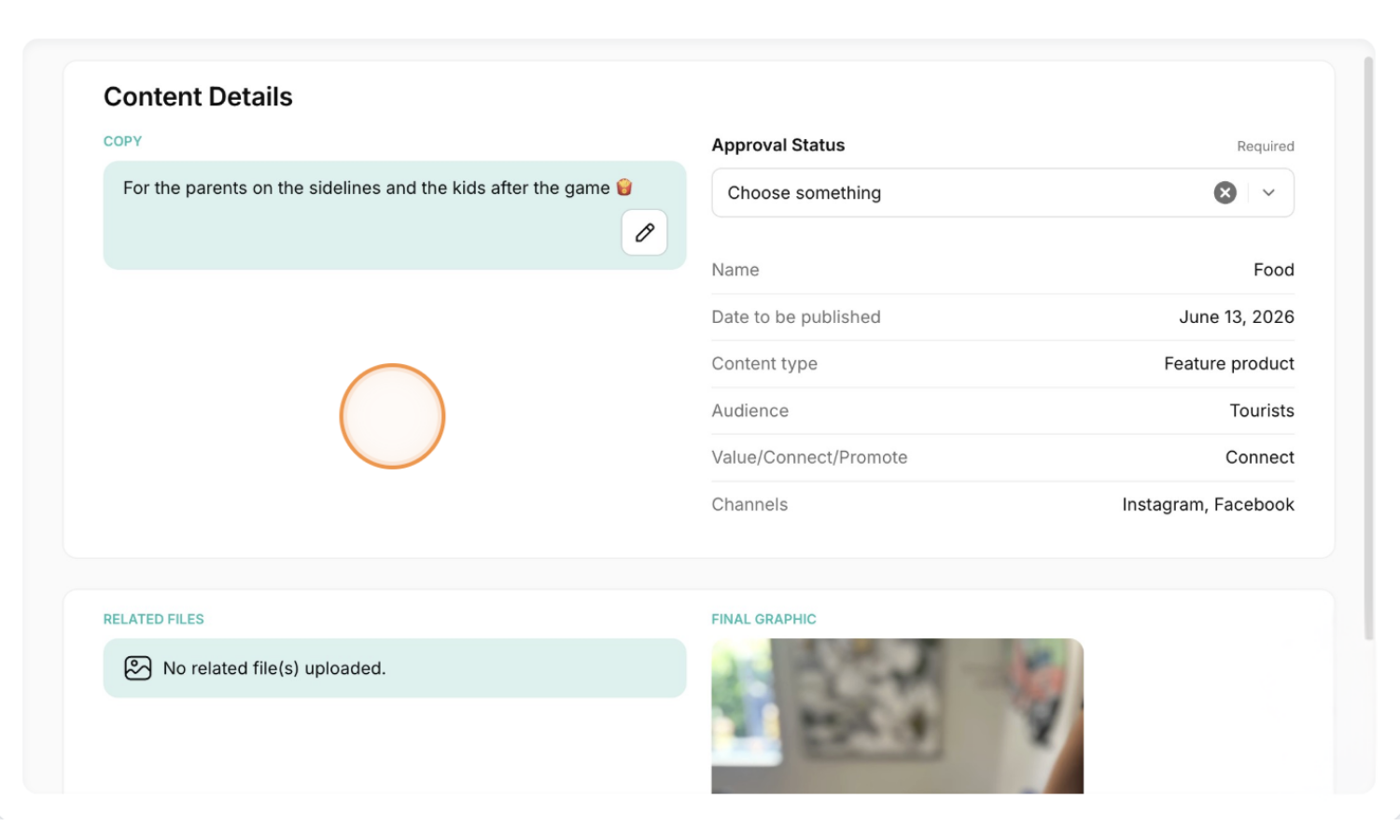
View all the details, including the caption, image, and the date to be published.
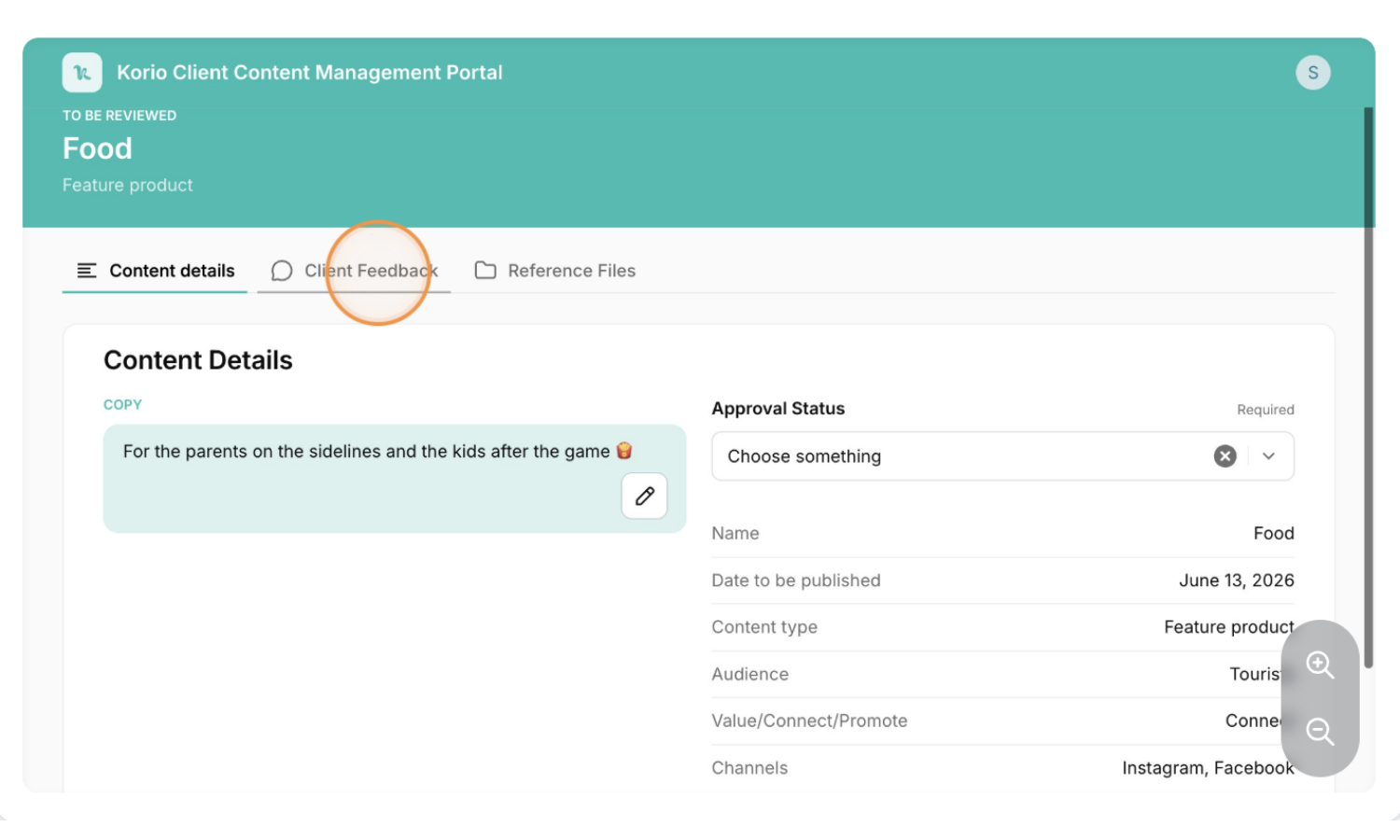
To leave feedback click "Client Feedback".
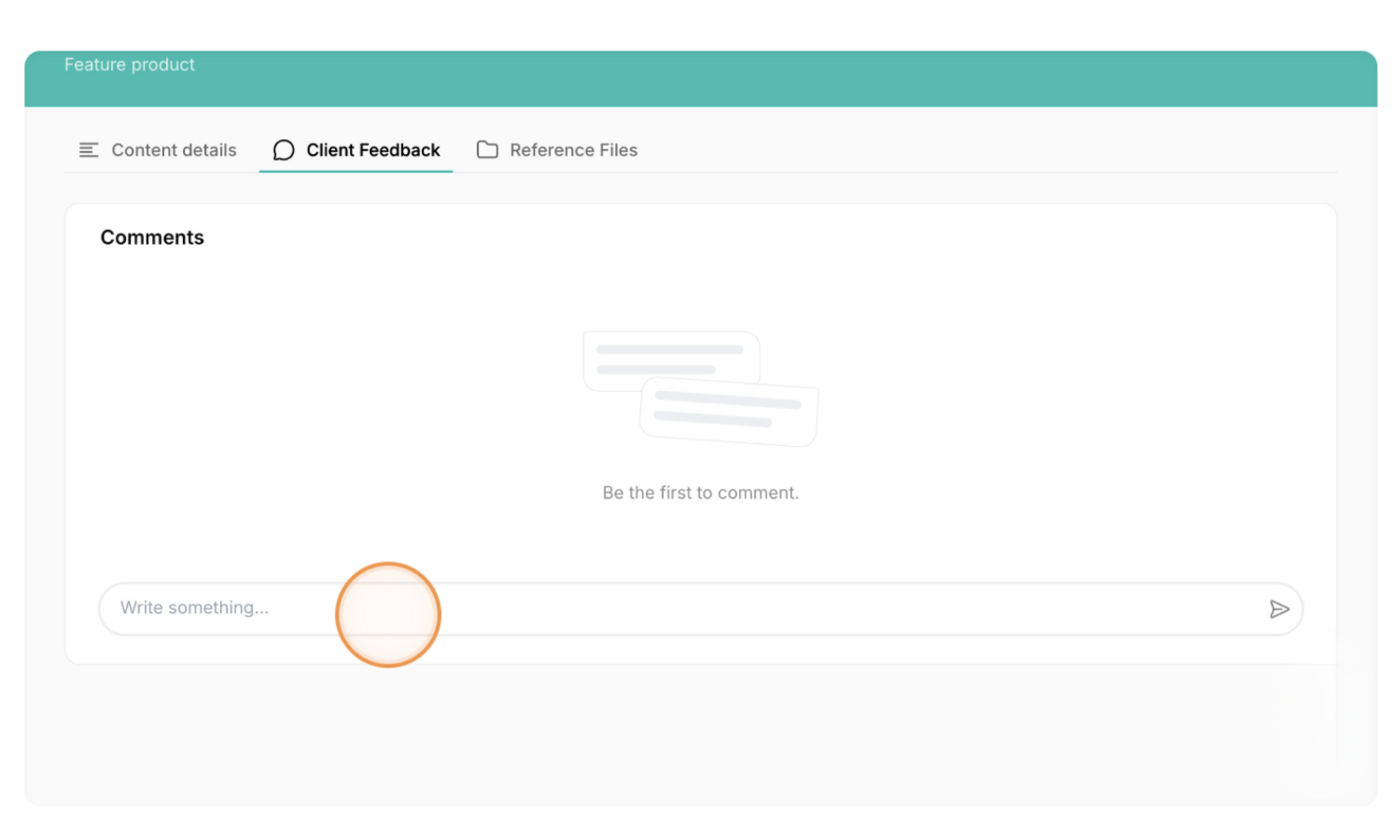
Write any feedback you have for that piece of content. Korio will be able to see the feedback and can make comments as well.
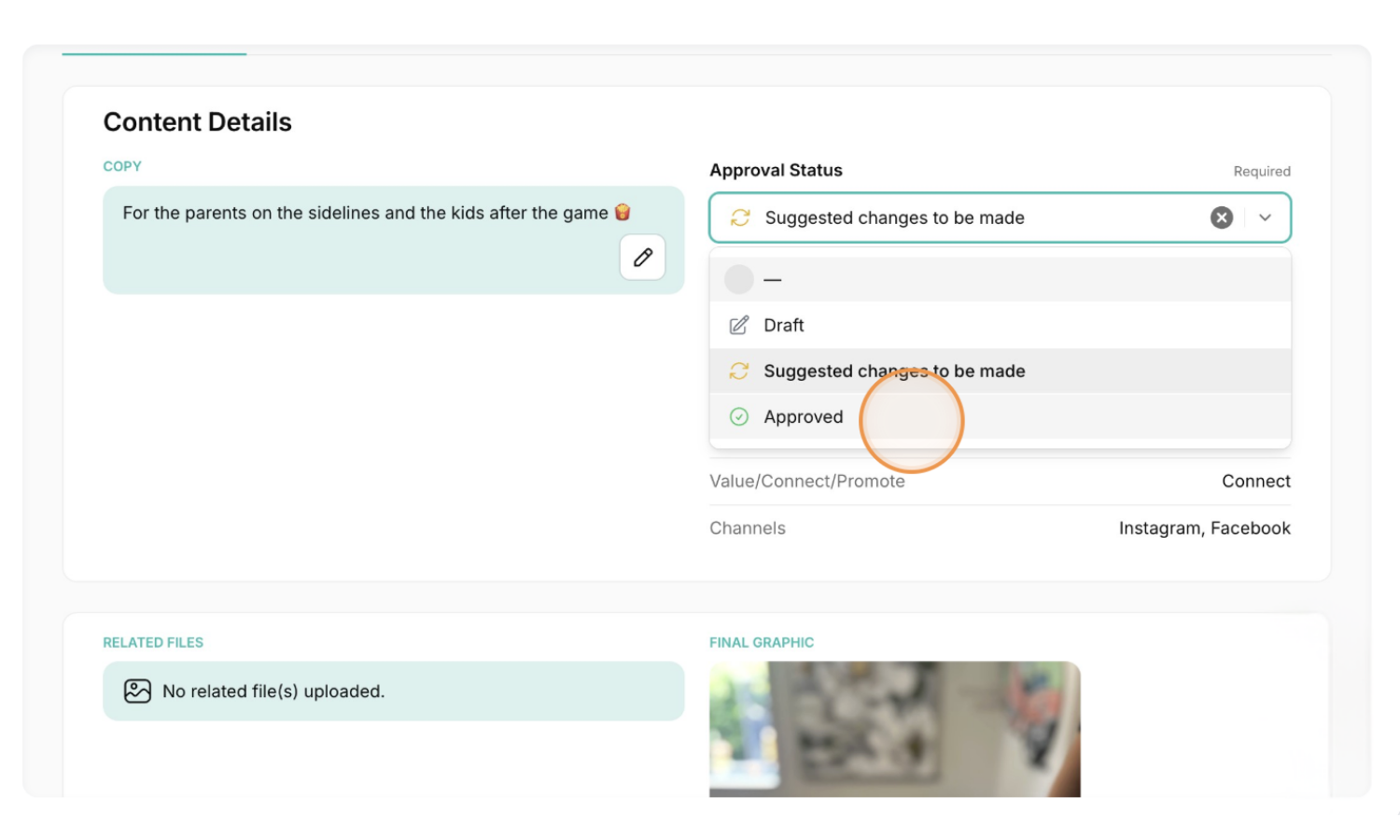
Change the status to "Approved" or "Suggested changes to be made" in the "Approval Status" drop-down.
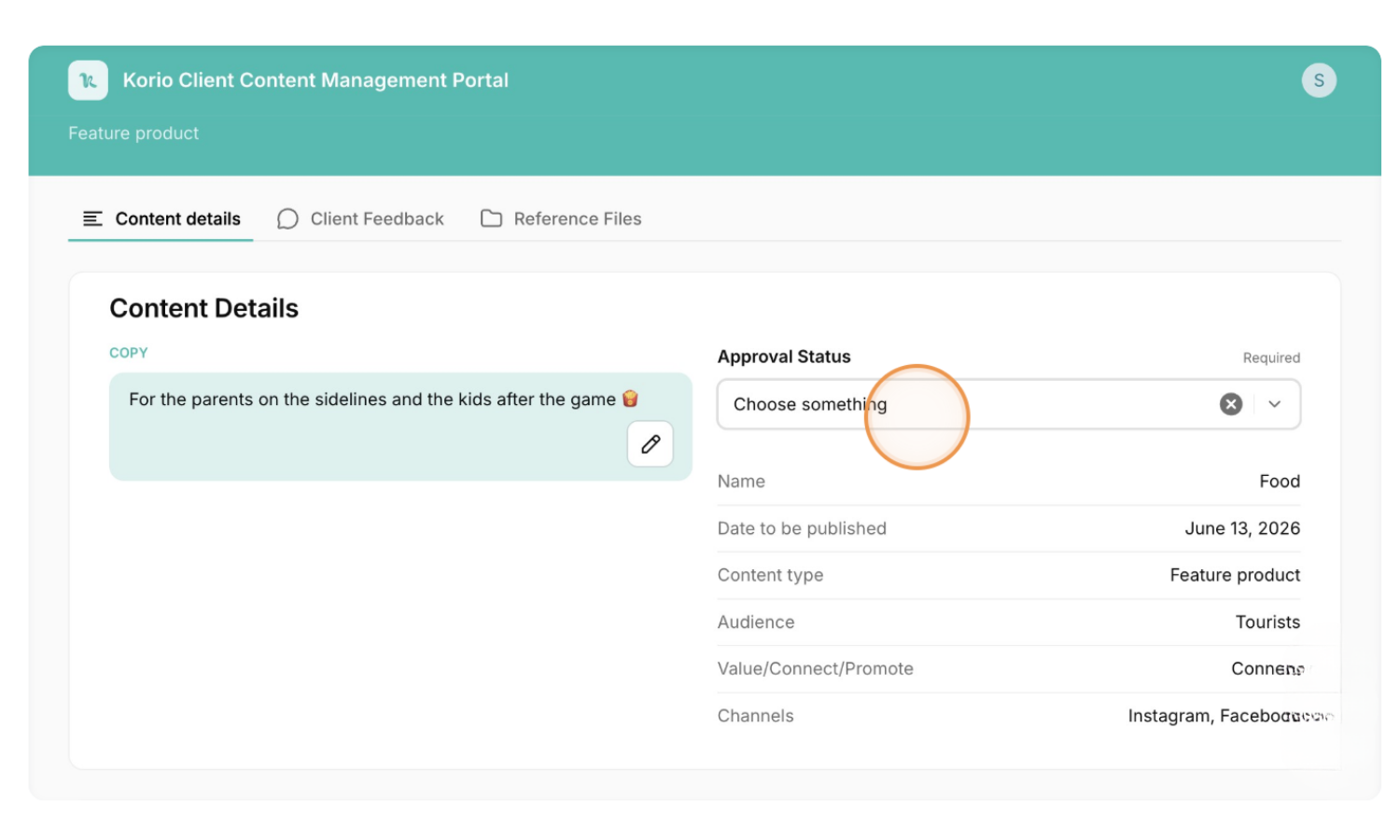
If there are changes select "Suggested changes to be made".
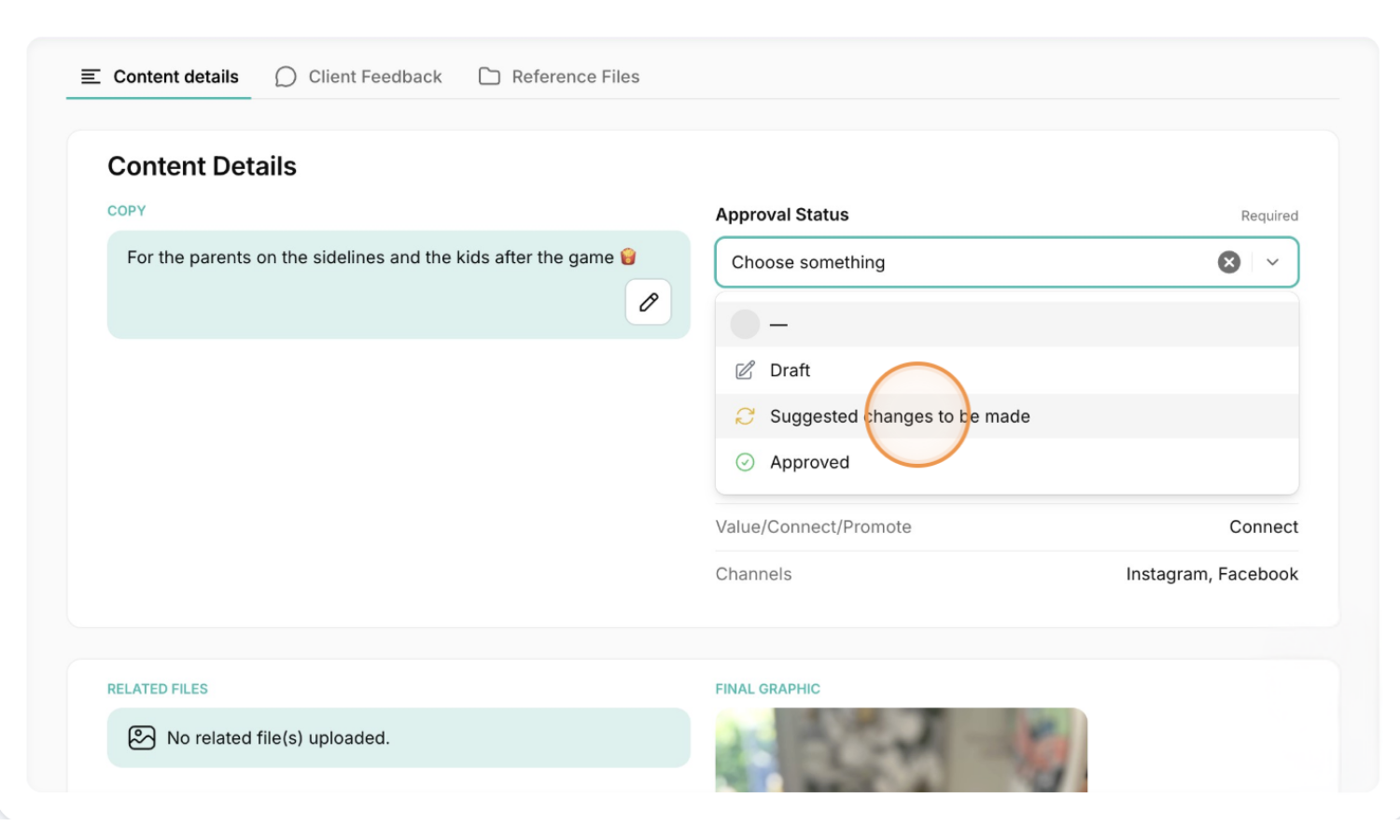
If it is good to go select "Approved".
Note: If it's only a minor text change, you can edit the caption directly by clicking the pencil icon. Once you have made your edit and it's good to go then select "Approved".
CREATING A DRAFT:
If you want to add an idea or a placeholder or draft you can add a "Draft" from the Gallery or List view by clicking + Add draft.
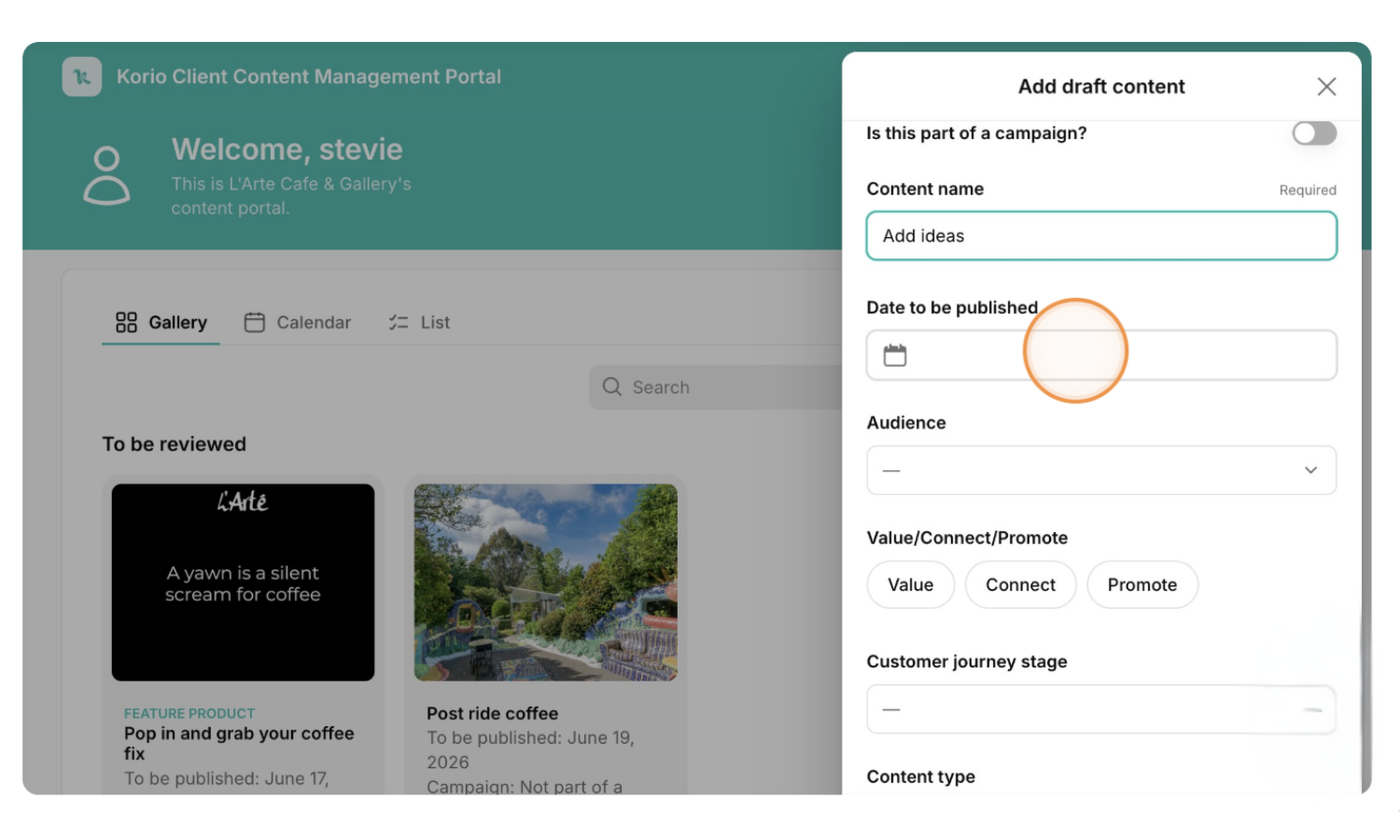
Name your content in "Content name".
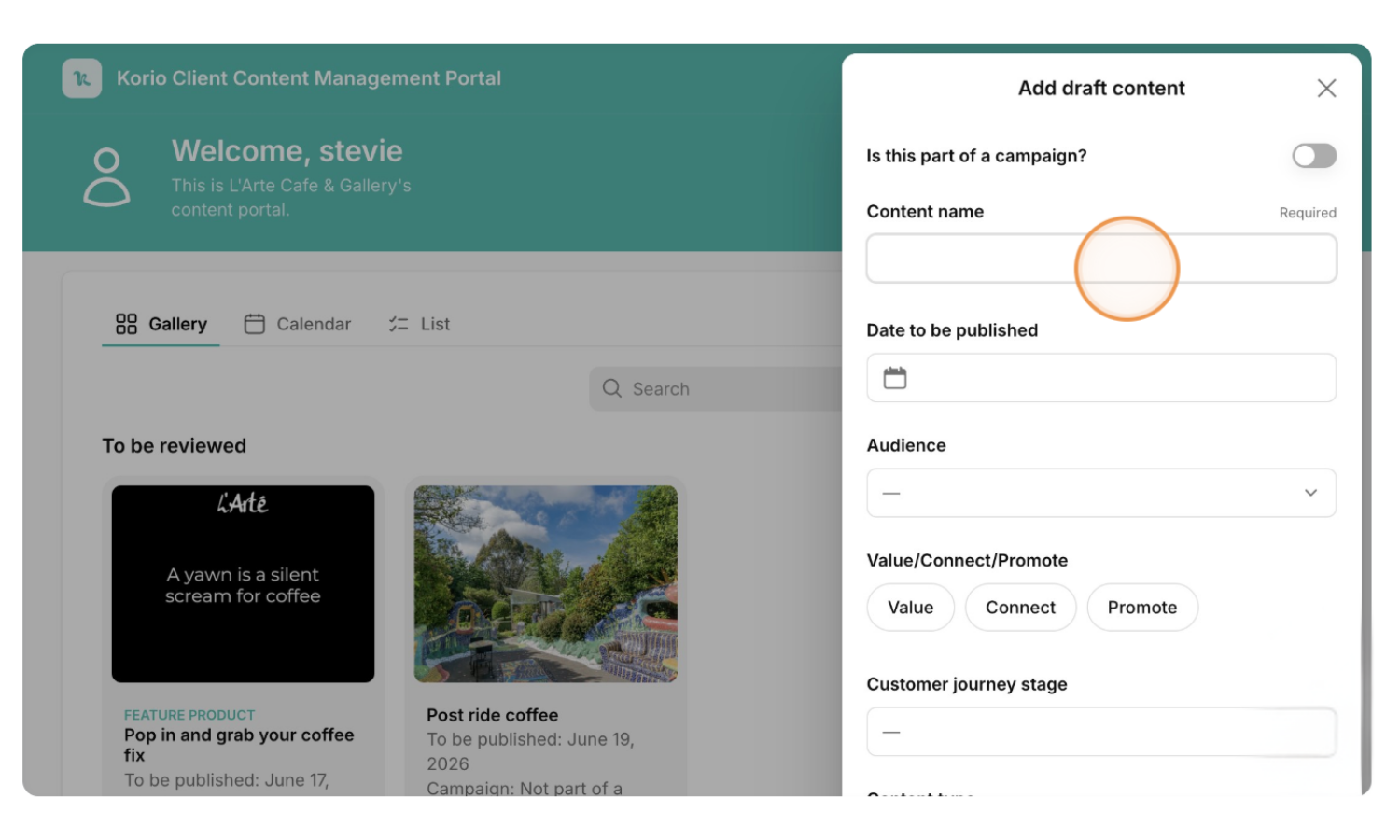
Add a date to be published in "Date to be published" (if you don't have a date in mind, you can leave this blank).
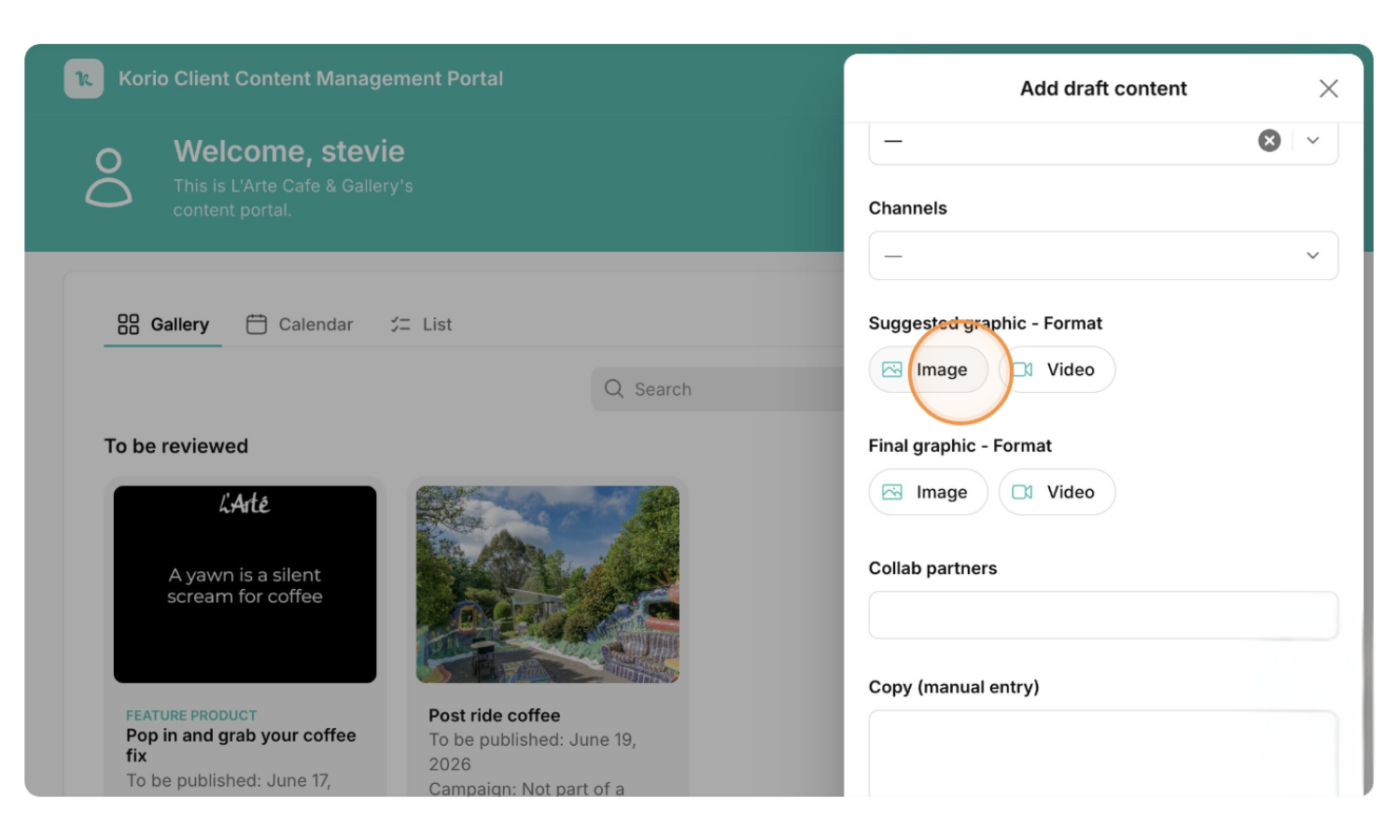
Add any images or videos in "Suggested graphic". (As above, if you don't have an image you can leave this blank.)
If you have a final caption ready, add it to "Copy (manual entry)". You can leave this blank if you don't have the final caption ready.
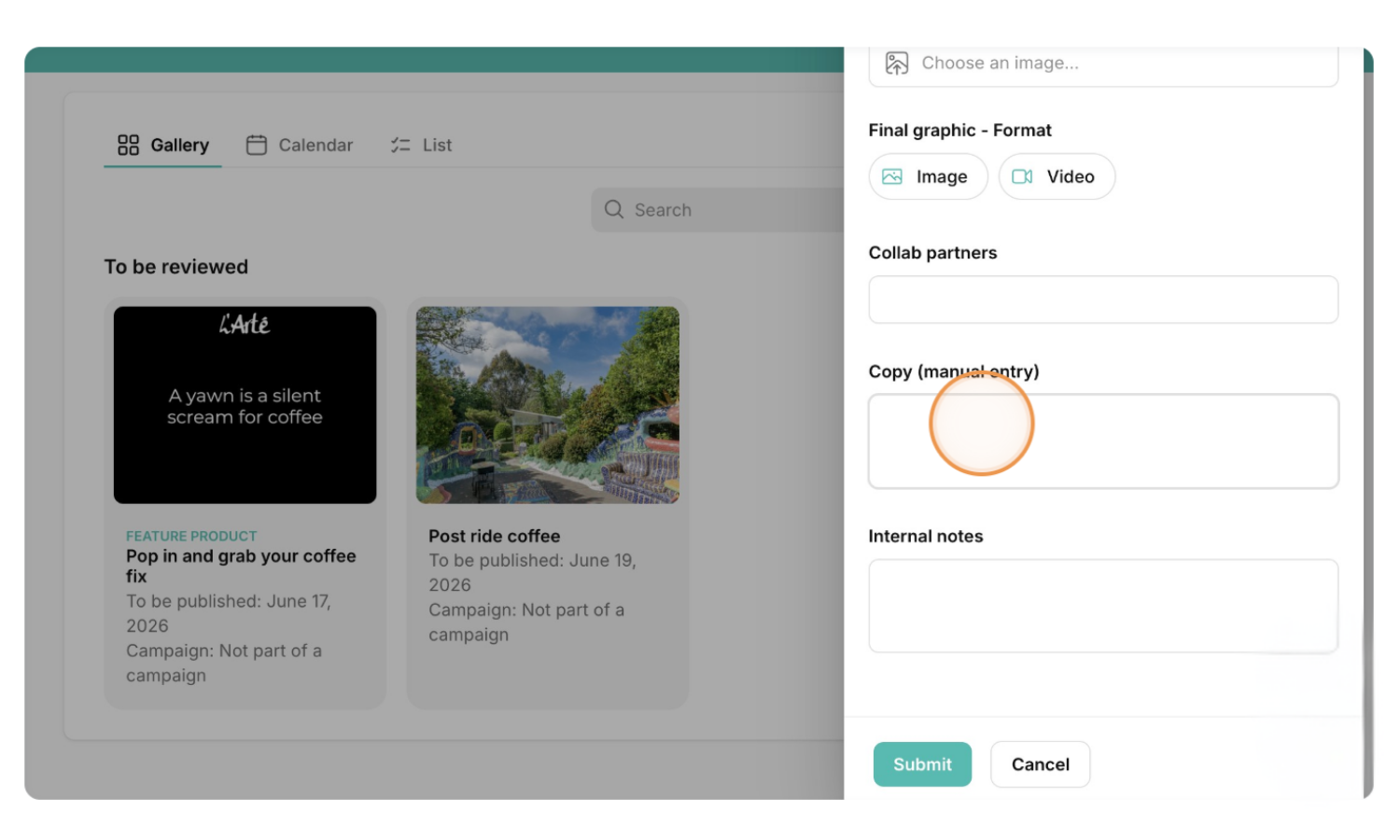
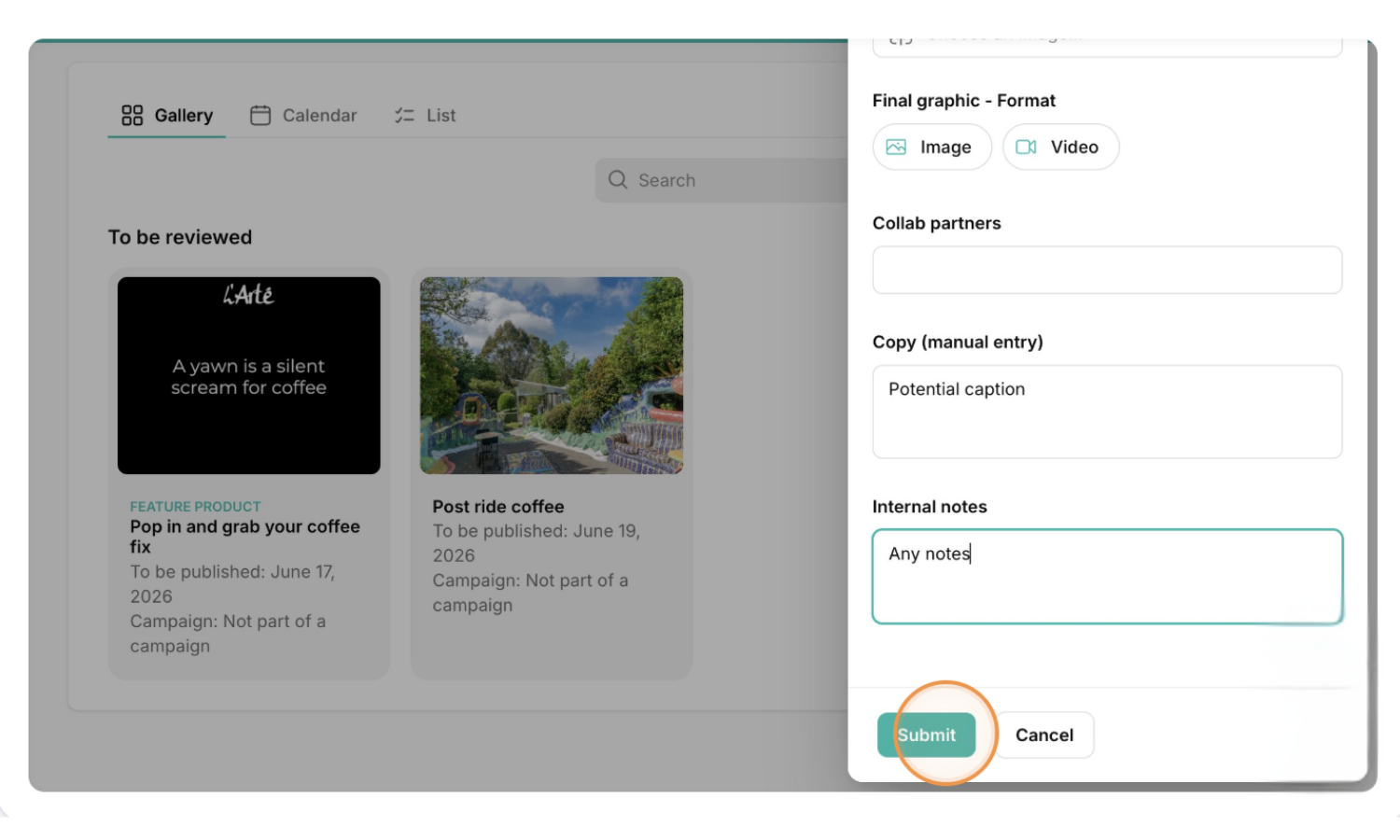
Add any notes for us in "Internal notes". This can be bullet points or a general idea—it is only a placeholder/idea gathering and/or special instructions related to the content. This is where we will pick up the details to generate the caption for you.
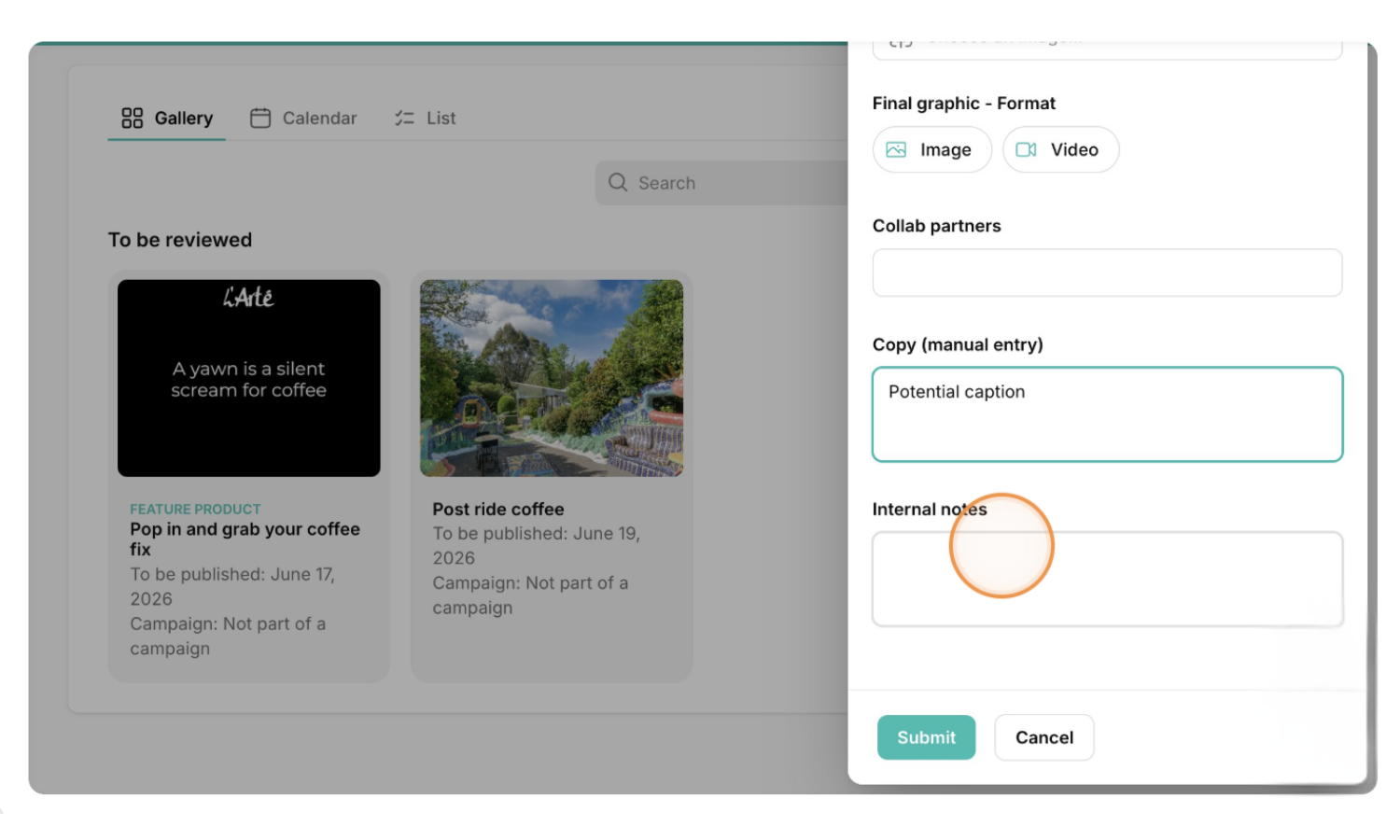
Click "Submit" and we will both have access to your draft. If you want us to action straight away then change the status from "Draft" to "Suggested changes to be made".

QUESTIONS? WE’RE HERE TO HELP
If you have any questions or need support at any stage, please don't hesitate to contact us. Our team is here to help and will be happy to assist you.
